To configure a Kanzi Studio project:
-
Open the project and in the main menu select > .
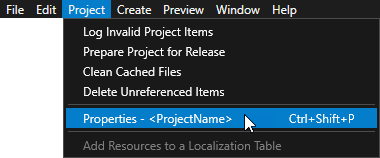
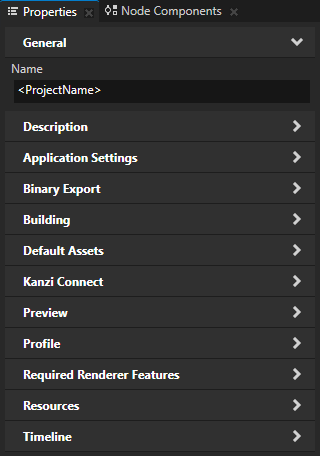
- In the Properties set the properties in these property categories to configure your project:
- Description to document the project. See Documenting a project.
- Application Settings to set the directories to which Kanzi Studio exports the kzb file and kzb Player version of the project. See Using kzb files.
- Binary Export to configure the contents of the kzb file.
For example, use these properties to optimize the export of meshes and images, and to set how Kanzi loads kzb files. See Setting how Kanzi loads a kzb file. - Building to set the application configuration that Kanzi Studio uses to build the project. See Configuring Android builds.
- Default Assets to set which assets you want to use when you create nodes and resources. See Setting the default assets.
- Kanzi Connect to enable the Kanzi Connect tools in the project.
- Preview to configure the Preview to work with Kanzi Engine plugins. See Creating Kanzi Engine plugins.
- Profile to set the name of the kzb file and project descriptions file, and the graphics API. See Using kzb files, Documenting a project, and Using OpenGL ES 3.0 in Kanzi.
- Required Renderer Features to set which features you want the renderer to support.
For example, you can request support for half-float texture format and color attachment. - Resources to set how Kanzi and Kanzi Studio handle resources. See Setting how Kanzi Engine handles unused resources.
- Timeline to set the start and end times of the global timeline of the project.
To view the timeline, select > > .
Setting the default assets
You can set which assets you want to use when you create new nodes and resources.
To set the default assets:
-
Open the project and in the main menu select > .
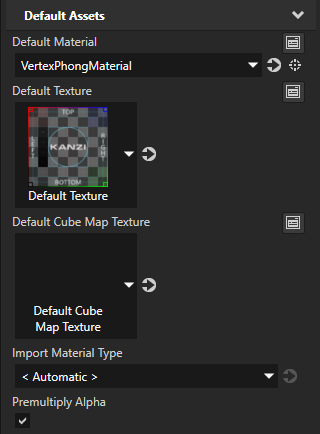
- In the Properties in the Default Assets category set which assets you want to use by default:
- Default Material sets the material that Kanzi Studio sets to models you create and import that do not have a material.
- Default Texture sets the single texture that Kanzi Studio sets to all new Image nodes and materials that use textures.
- Default Cube Map Texture sets the cubemap texture that Kanzi Studio sets to all new materials that use cubemap textures.
- Import Material Type sets the material type to which Kanzi Studio assigns the materials that you import with 3D asset files.
Setting how Kanzi loads a kzb file
The presence of the Screen node in a kzb file determines how Kanzi loads a kzb file.
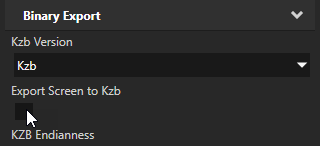
To set whether Kanzi Studio exports the Screen node to the kzb file of that project, in the > set the Export Screen to Kzb property to:
- Enabled to export the kzb file with the Screen node. This is the default setting. You can start your Kanzi application with a kzb file that has a Screen node. If you load during application runtime a kzb file that contains a Screen node, you replace the Screen node that the application uses.
- Disabled to export the kzb file without the Screen node. You can load a kzb file without a Screen node only during application runtime, when your Kanzi application already has a Screen node.
Project property types
For a list of the available property types for a Kanzi Studio project, see Project.
